
Play Now
Join a Game
Characters
Shop
Tools
Compendium
Community

Sign In

Play Now
Join a Game
Characters
Shop
Tools
Compendium
Community
Sign In

The Public/Whisper toggle allows you to decide who can see the rolls in the chat from this sheet. Public allows all players to see the roll and results while Whisper only allows the player(s) with access to this sheet and the GM to see the results.
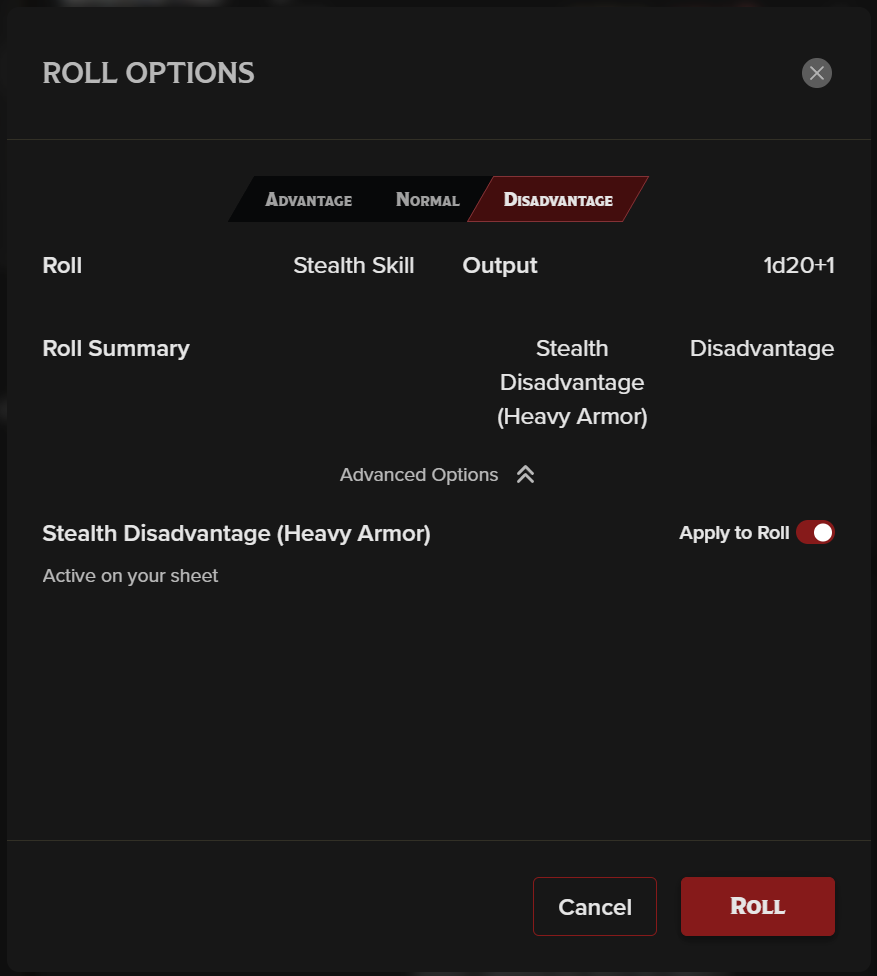
The Adv/Disadv toggle, or dropdown if you're using a smaller screen width, is used to change how you roll.
Finally, we have Sheet Settings. This is a collection of toggles that let you personalize your sheet even further, selecting rule settings, whether you want the sheet to always roll damage when you roll your attack instead of waiting for a second click, and to change your layout view. At the bottom of this pop-up modal, you'll also find buttons to provide feedback or report a bug!
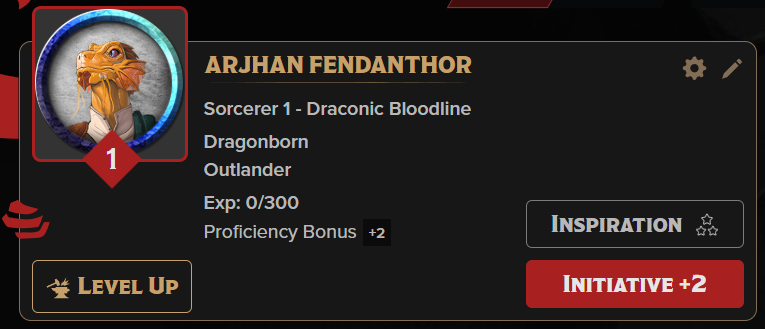
Now we're getting into the actual character sheet. This is your character at a glance. These details can all be edited or overridden using the pencil (in-line editing) or the small gear (pop-up modal) at the top right of this section. In fact, there are small gears at the top right of all these fields to offer more customization and control.
The center of this section is information in a read-only display as a reminder of what choices were made in the character builder for this sheet.
To increase your Experience Points, use the pencil or gear to edit the current value.
Clickable buttons:
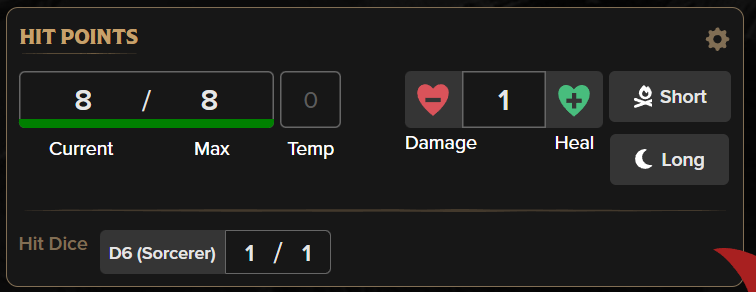
This section determines if you are alive, dying, or dead.
Temporary Hit Points can be edited directly in the "Temp" field.
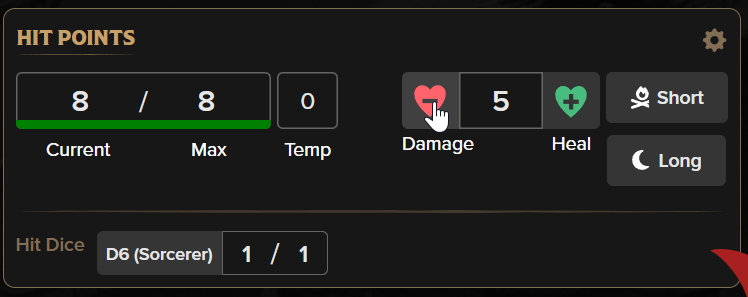
Your current HP can be edited by simply clicking into the field and changing the number. However, if doing math isn't your idea of fun, you can input the number into the field on the right and click "Damage" or "Heal" to change your HP by the correct amount. This will remove temporary HP first, then your current HP for damage, and for healing, it will not heal above your max. If it's a small number, you can also leave it at 1 and just click "Damage" or "Heal" the number of times of times needed.
If you drop to 0 hp, the section will change to Death Save mode where you can roll your death saves and have it automatically track your successes and failures until you stabilize or die.
You can only change your max HP via the gear by adding bonuses or overriding the current maximum.
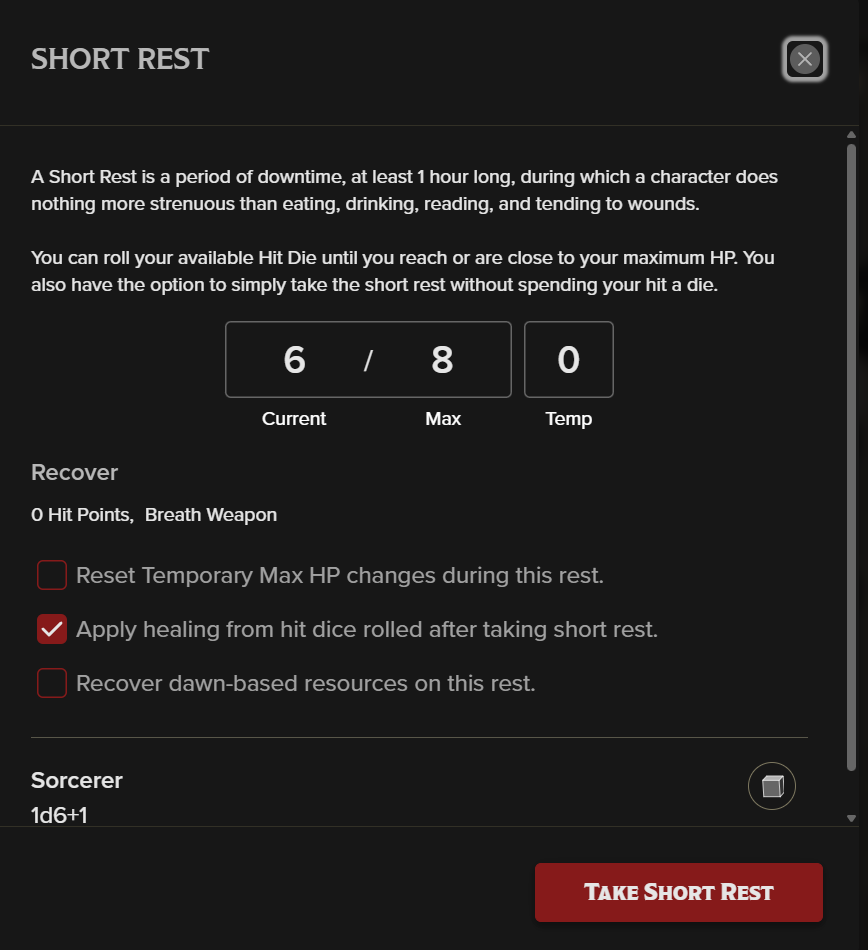
Your hit dice are displayed at the bottom of this section- one for each level you have. You can click the die size/class display to roll your hit dice + your Constitution modifier if you wish to do so outside of a Short Rest. You can also change the number of hit dice you currently have or your maximum directly in the field.
Finally, you don't need to remember what recovers on a Short Rest or Long Rest. Click the appropriate rest button and the sheet will let you know what is changing and what you might want to change manually. On a Short Rest, you can also roll your hit dice right from the pop-up.
If you have items that recharge at dawn, you can also select the checkbox that says "Recover dawn-based resources on this rest" on both the Short and Long Rest modals.

These are the six abilities and your scores, modifiers, and saves. The scores are in the small box at the top for reference. The "Mod" and "Save" boxes are both clickable to roll a check or save accordingly. As you can see, if you have proficiency in a saving throw, that box will be colored red and have the proficiency bubble filled in. You can manually change your proficiency by clicking into that bubble to change it between untrained, half-proficiency (such as the Bard's Jack of All Trades), proficient, or expertise (double proficiency).
You can also grant yourself several bonuses, notes, and overrides for both ability scores and saving throws in the gear settings.
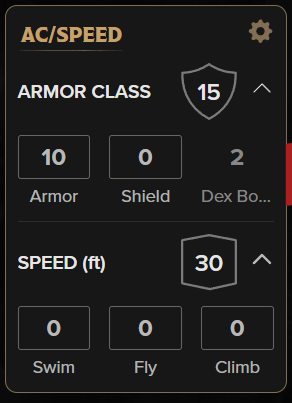 When collapsed, this section only shows your current Armor Class and Walk Speed. These can both be changed by clicking into the fields. By clicking the expand/collapse button, you can see the modifiers that go into your Armor Class or the Swim, Fly, and Climb speeds you may have.
The gear gives you more customization options, such as overrides and bonuses.
Back to the main navigation!
Cookie Preferences