
Play Now
Join a Game
Characters
Shop
Tools
Compendium
Community

Sign In

Play Now
Join a Game
Characters
Shop
Tools
Compendium
Community
Sign In
For the examples in this section, we're using a multiclassed Warlock/Cleric Tiefling with the Magic Initiate feat.
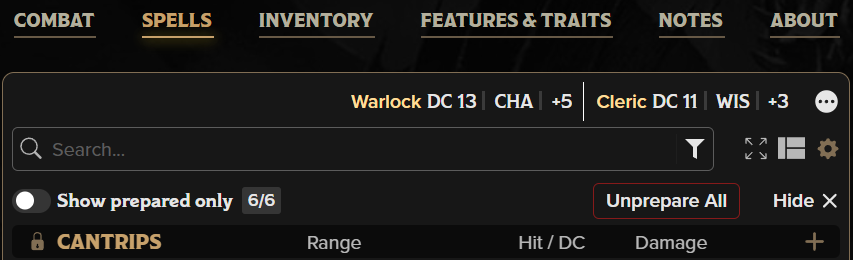
At the top of the Spells Tab, you can see the spellcasting modifiers, DCs, and related abilities for each Spellcasting feature you have. This may be classes, subclasses, species, or feats. The three dot menu to the right lists any further Spellcastings that may not fit- in this case, the Magic Initiate feat and Fiendish Legacy (Tiefling).
There is a search bar that allows you to immediately pull up a spell if you know what you're looking for within your massive spellbook, as well as a filter that allows you to only show spells of a given level or class. This search bar will only return spells already on your sheet. To add new spells, use the builder, drag and drop, or manual entry.
The Expand View button will shift to a full-page spell view that mimics the legacy style of the 2014 sheet. With the Layout & Sorting menu, you can change how your spells are displayed. The gear icon will open a settings module where you can further customize your view, manually enter a spell, or make adjustments to spellcasting abilities and spell slots. Each of these buttons is explained with more detail below.
At the bottom left of the header, you can decide whether you'd like to see all the spells on your sheet or just those you have prepared. This will assist with being able to put all the spells you have access to on your sheet, but keeping the view limited while trying to decide which action to take.
To the right of the toggle, you can see how many spells you currently have prepared and the number you can have prepared per your class. There is also a button to unprepare all your spells if you'd like to start from a clean slate.
Finally, the Hide button will remove this bottom row from the header altogether. You can return it to view via the gear settings.
Cantrips are a special kind of spell that can be cast at will. As you can see, they are listed under "Cantrips", which can be reordered or added to manually with the lock or + symbols. Each cantrip includes the name, a Send to Chat button, a range, a pencil for in-line editing, and an expand/collapse button to see more details about the spells.
Additionally, some spells have markers next to their names to indicate the source of the spell (Warlock, Tiefling, etc.). If a spell requires Concentration or can be cast as a Ritual, you'll see a C or R to the left of the range.
If a spell has an attack or a target must succeed at a saving throw, the information for that attack/DC will be under Hit/DC, and the damage and damage type are listed under Damage. These are clickable buttons, just like on the Combat Tab, and the entire spell listing will also send to chat/roll as appropriate.
Inside the detailed view, you'll see more information such as spell school, duration, casting time, spell components, and the spell description.
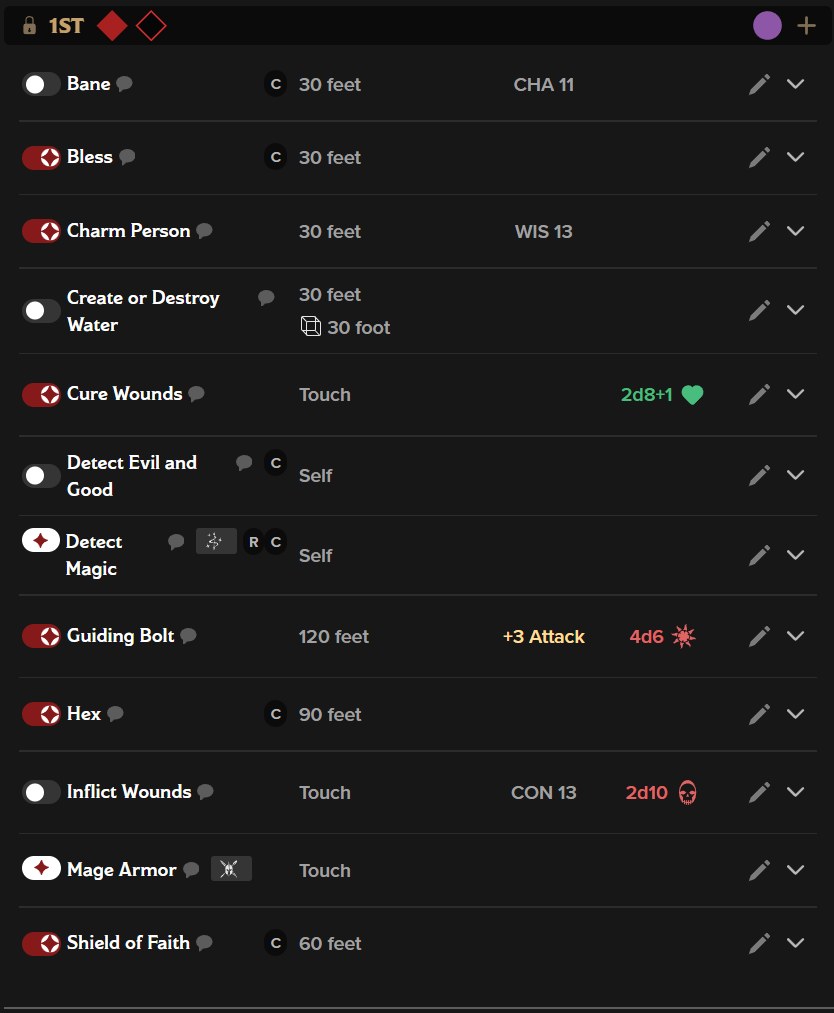 Much of this section is identical to the Cantrips section, so we'll just highlight the differences here.
First, at the top you'll notice some red diamonds and/or purple circles. These are your spell resources. Red diamonds indicate spell slots that most spellcasters use. Purple circles indicate Warlock Pact Magic. In both cases, if the symbol is solid, that slot is available for use. If it is only an outline, that resource is depleted and you must rest or use a feature to recover it.
Next, along the left edge, you'll notice there are several symbols and toggles. While Cantrips are either known or unknown, Spells can have a few different statuses.

Finally, there are many magic items that allow you to cast a spell, even if you do not have access to the spell slots required. In this case, we've granted our Cleric/Warlock a wand of fireballs. It adds fireball to the sheet, Always Prepared, but it has a new symbol next to it. That symbol indicates that it is an item with 7 of 7 charges. You can cast the spell from this page, but reducing the number of charges will be done on the Inventory Tab. Hovering over that symbol will tell you which item is granting the spell.
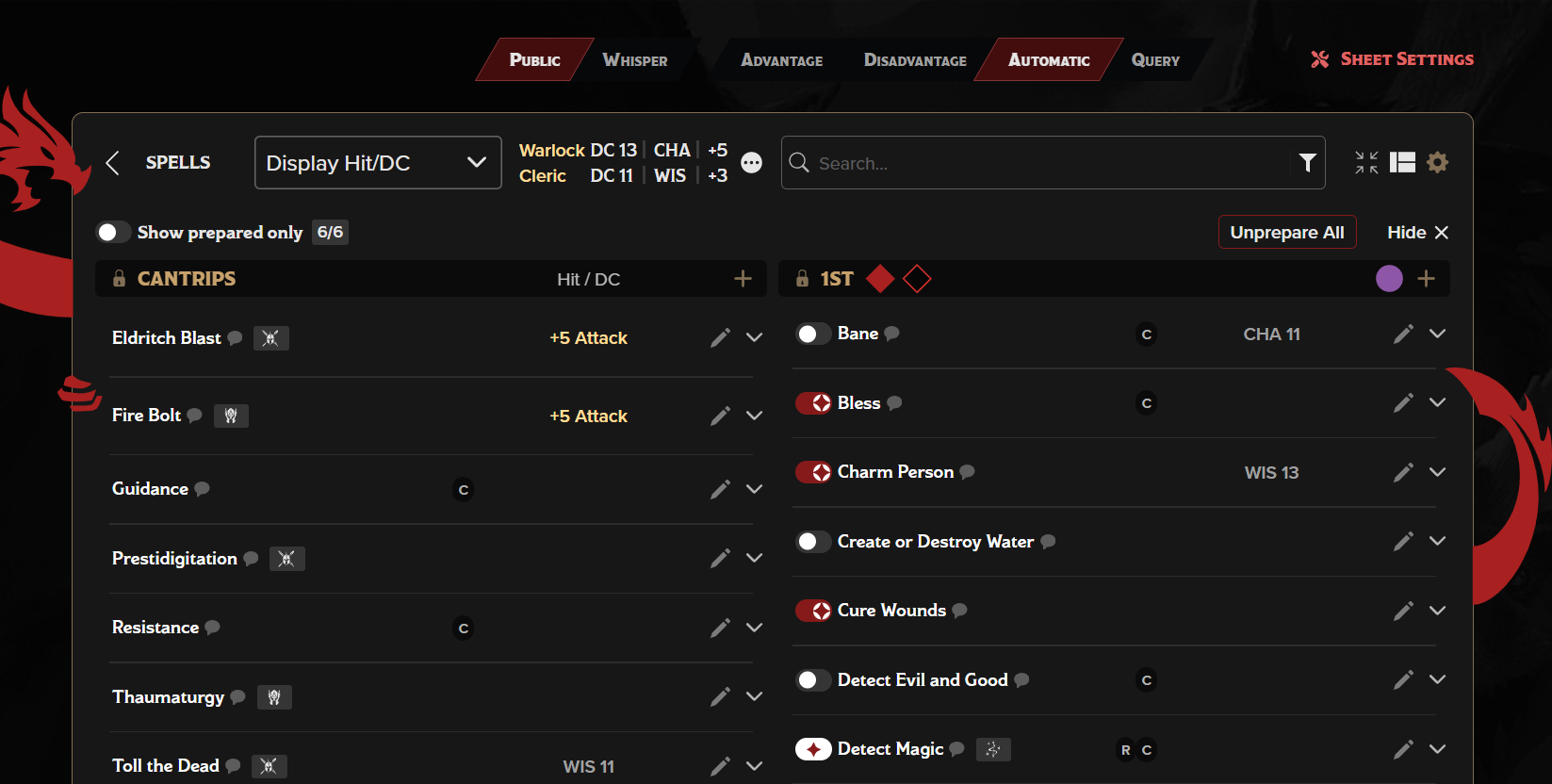
If you prefer to see more of your spells at once, the four arrow 'Expand View' button will take you to Full Page View, which gives you 1-3 columns of spells, depending on your screen width, in a style that feels similar to the classic 2014 sheet. There are a number of options you can use to customize this view further, such as designating which of the data points you want to be visible when the spell is collapsed and choosing between card view and list view. To leave the full page view, use the back arrow at the top left of the character sheet.
Speaking of card view and list view, those can be determined here!
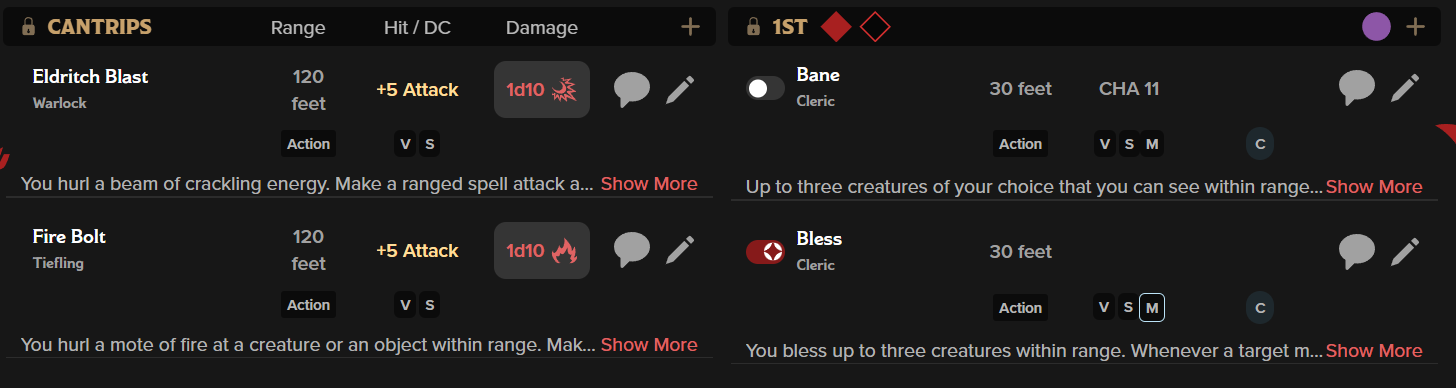
Card view offers a more comprehensive view of your spells, including many of the aspects that are typically hidden under the expand/collapse button. You can choose how much information density you want to see.
You can also choose Spell Slot View if you just want to see the status of your spell slots and how many you have remaining at a glance.
Finally, the Sort Ascending and Sort Descending buttons are not for sorting your spells (you can do that with the lock button), but will sort your spell levels so that your highest level spells are at the top or bottom of the page, allowing you to play it safe or go big early.
The Spell Settings modal has several options within it. Here, you can select a few more options for display, such as which spellcasting modifiers you want to be visible or enabling Full Page view by default.
You can also manually enter/create a spell if you don't have it in your compendium.
Finally, you can edit or add spellcasting abilities and spell slot numbers.
Back to the main navigation!
Cookie Preferences